
The problem
Admins rebuilt the same report every week from a screen of filters.
My main decision
Open reports with data, keep the most used filters close, and let a report be saved and later scheduled.
Evidence
Reported for the shipped redesign: 35% less time to create a report.
The same report, every week
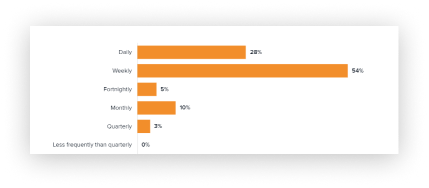
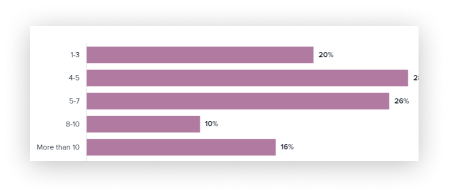
Reports is where accountants and finance admins reconcile expenses, sign off transactions and report each month. In our research, 28% ran reports daily and 54% weekly, and more than half produced between four and seven report types.
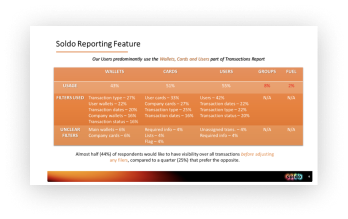
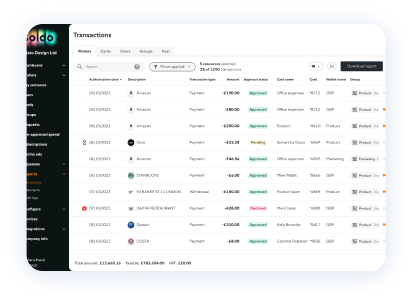
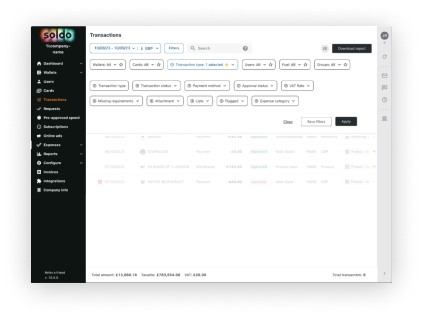
The old Reports page assumed admins know exactly what they want before they start, so it opened with a wall of filters and no data. That assumption, made by the team before my redesign and never tested, didn’t hold. People who weren’t sure which filters to use, or just wanted an overview, found it overwhelming.
What shipped: reports that open with data
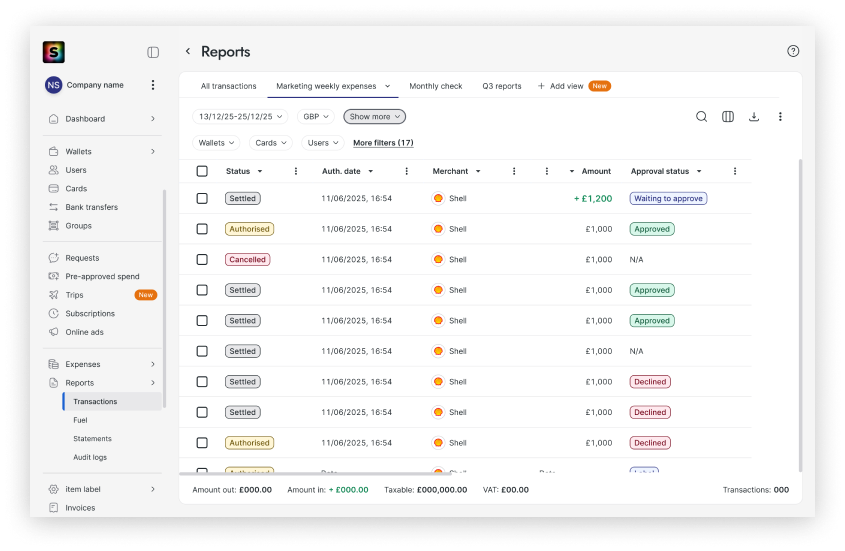
- Reports load without requiring users to select filters first.
- The most used filters sit on the page as quick filters. Advanced filters open in a side drawer.
- A filtered report can be saved as a view, and people switch between views.
Scheduling: three options
The next request was to have a report arrive on its own. In research for scheduling, 55% wanted Soldo to remember their settings and 39% wanted to schedule recurring reports.
The obvious route was to schedule saved views. But saved views share filters with the live Reports page, so any change there would quietly change every schedule. Their date filters are also fixed ranges, while a weekly report needs “the last 7 days”, counted again each time it runs.
| Option | For | Against |
|---|---|---|
| Reuse saved views as they are | Reuses today’s interface and filters, so it saves time | A change to a saved view would quietly change every schedule built on it, and its date filters are fixed ranges |
| Add a second type of view for schedules | Still reuses the existing interface | Two kinds of view that look alike: too confusing |
| Give schedules their own filters and section Chosen | Filters built for the job, such as rolling periods, and everything about a schedule in one place | More engineering work, and one more item in the navigation |
We chose the third option. Scheduled reports have their own section, set up in four steps: what to report, how often, who receives it and in which formats, then a review.

Design explorations
The filters redesign that shipped, then scheduled reports in progress.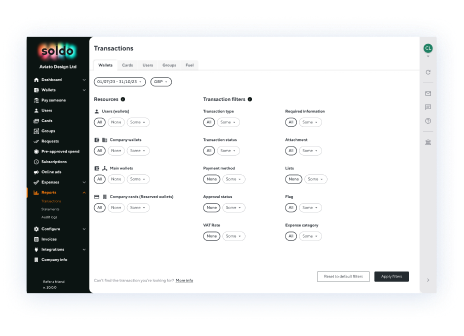

Before: a long list of filters shown by default, grouped into resource tabs
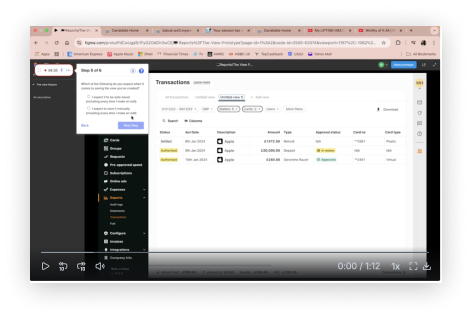
Early explorations and prototype testing
The most used filters are positioned as quick filters.
Users can create several views and switch between them


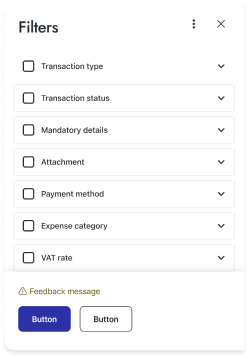
Advanced filters open in a side drawer

Reports load without requiring users to select filters first

User workflow

Multiple views and scheduling

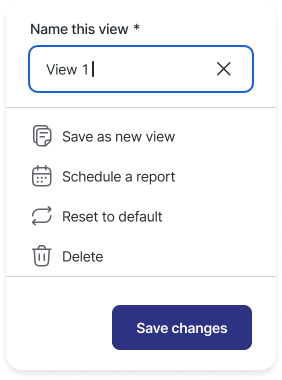

Set up once for daily, weekly or monthly reports
Set it up once, in four steps
Scheduled reports have their own filters, with preset periods like “Last 30 days” or “Last month”. Each run moves the dates forward, so the report is never stale.
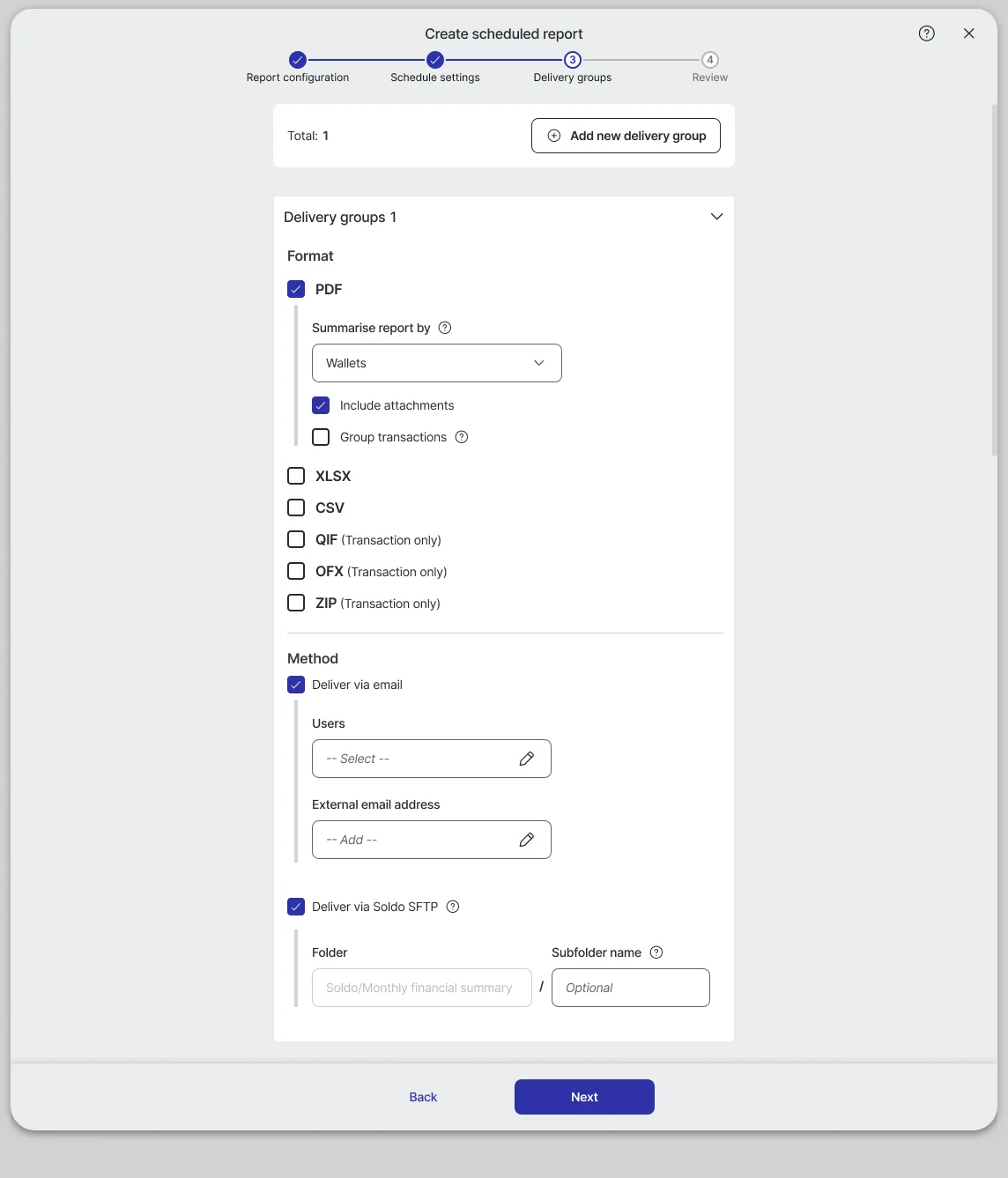
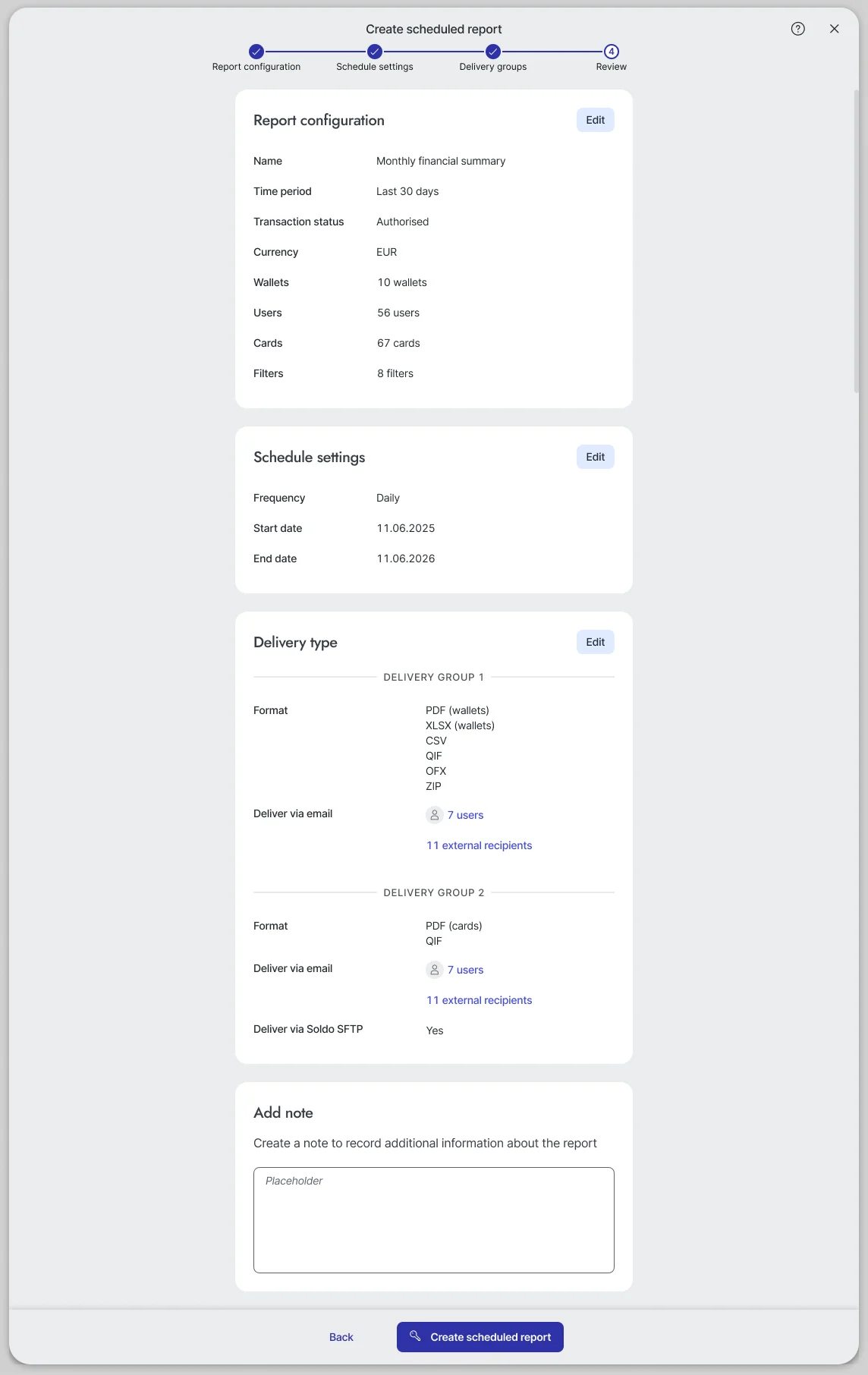
Delivery groups: one schedule can send a PDF by wallet to finance and a CSV to the accountant, by email or to Soldo SFTP.
Review shows everything before it goes live. A note records why the report changed, so a new version is never a surprise.
Each schedule and its history, in one place
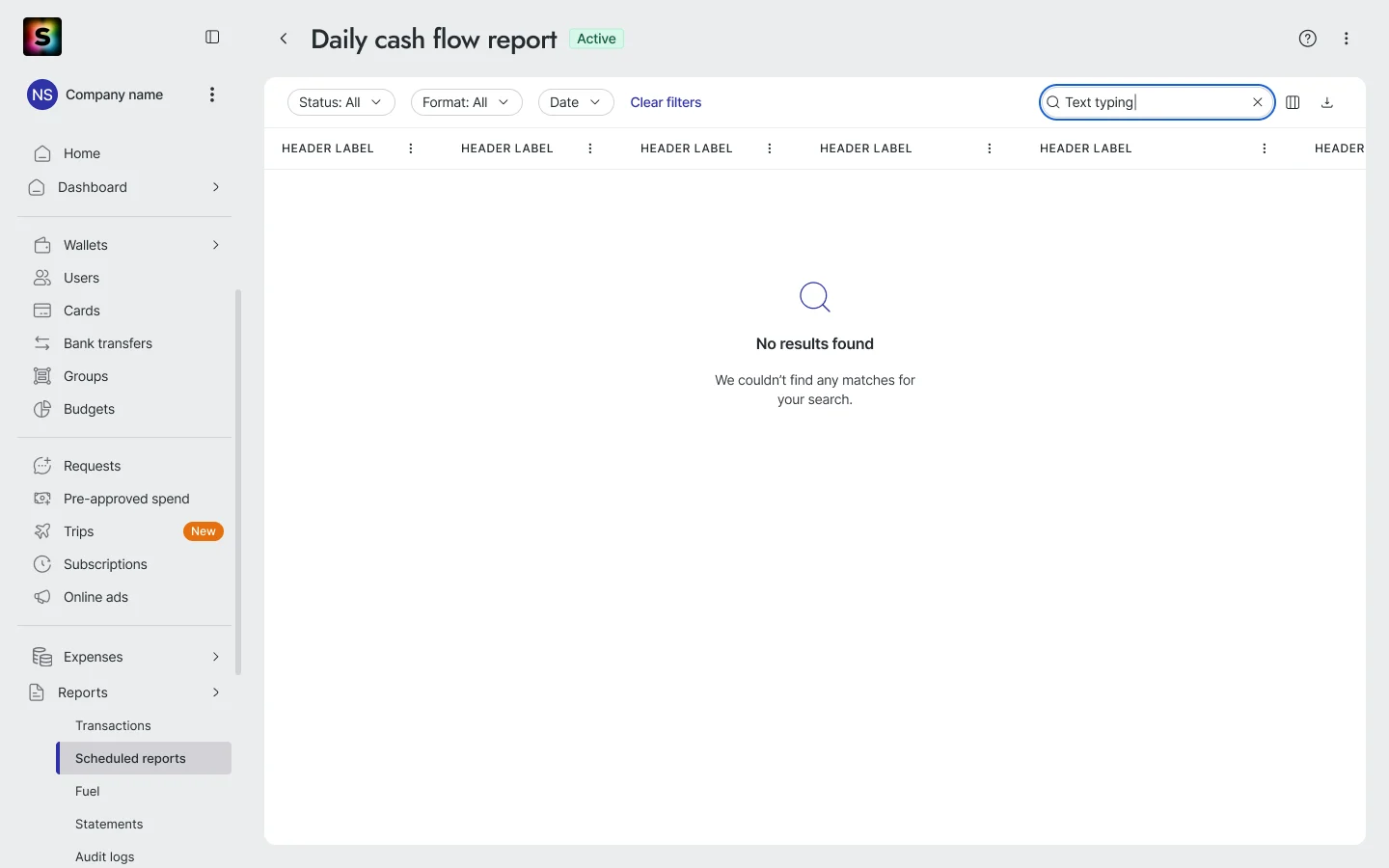
Every schedule opens to its past runs, with filters for status, format and date. Admins can search, download, pause or edit from here.
Results and targets
Reports redesign · shipped
time to create a report. (reported)
Scheduled reports · targets, not results
Target · ease of useReports feel simple
- 65%satisfied with ease of use, from 51% in the last survey
- −50%clicks to produce a repeat report
Target · valueReports do the job
- 60%satisfied with functionality, from 47%
- 25%say Reports fully meets their needs, from 16%
Target · adoptionPeople set it up and keep it
- 30%of users create at least one scheduled report
The survey targets will also reflect the earlier redesign and saved views, not scheduling alone.